Samsung Video Wall On-Site Setup and Configuration
Nov 5, 2025
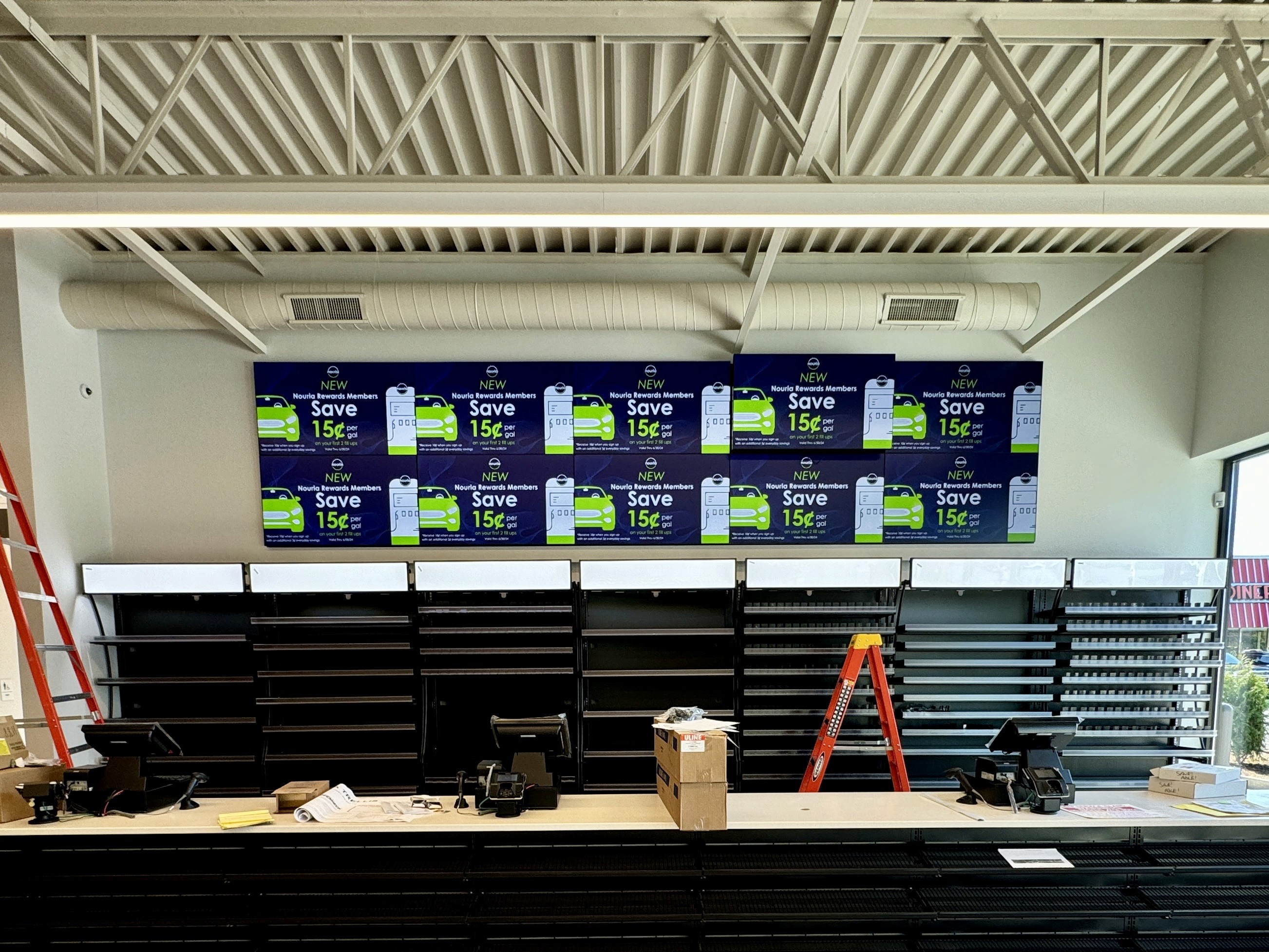
Two notes on this doc:
- I was unable to get screenshots of Samsung's menus so UI's were recreated in Figma to ensure maximum clarity (and because it was pretty fun)
- My usual Markdown editor (Typora) supports modified callouts such as [!note] and [!important]. These modifiers were removed for clarity since Framer CMS does not currently support more advanced Markdown features.
Video Wall On-Site Configuration
This process requires the use of two remotes, one for media boxes and one for displays. The remotes can be distinguished by the presence or lack thereof of three white "Smart Signage" buttons on the bottom left of the remote.

Media Box Remote

Display Remote
Cabling Configuration

Display
HDMI IN1 → RS232C IN →

Media Box
← HDMI OUT ← RS232C OUT
- Ensure IR receivers are in IR IN.
- If too many displays are responding to remote input at once turn off affected displays or remove IR receiver temporarily.
- RS232C uses a standard 3.5mm connector
- If IR receiver is incorrectly connected to RS232C IN or OUT port on either device, Media Box will fail to recognize Display as child device
Media Box Configuration
Initial Setup
- Language - Select English
- Display Orientation - Select Landscape
- Network - Ensure media box is using Wired Connection (wired connection should be selected automatically)
- Privacy Notice - Select Agree
- Play Via - Select MagicInfo
- Connect to MagicInfo Server - Select Set Up Now
- Enter the following unless otherwise specified by supervisor:
- Server Address - redacted
- TLS - Don't Use
- Port - 80
- Save
- Device on Server - Skip this page
- Clock Set - Set current date and time
PC Connection
-
Press the Home button (house button above up arrow) to enter the MENU

- Select Device ID
- Change/Verify PC Connection Cable set to RJ-45 (LAN); Select Done
- Media box will enter the Player menu with three options: Network Channel, Network File, and My Templates; Select Network Channel (If Player menu doesn't appear automatically open MENU and select Player)
- If media box is already registered on MagicInfo server by supervisor or system admin content will be displayed; if not MagicInfo animation will display until content is pushed
Display Configuration
-
Using Display remote (see note at top of page) select MENU

- Select System → Setup
- Language - Select English
- Display Orientation - Select Landscape
- PC Connection Cable - Select RS232C cable
- Network Settings - Default is Obtain automatically, do not change
- Clock Set - Skip this page
- Done
Verification
Verification of video wall functionality can be completed with supervisor or system administrator. Verification steps typically involve the following:
- Verifying MagicInfo is set to Premium license
-
Verifying IP configuration order
Media boxes should be registered with first octet in upper left of video wall and proceed across the top. The registration will then proceed to the bottom left and proceed across the bottom. For example:

- Large logo content push to ensure proper alignment of displays
- Verifying all media boxes communication with server and all displays communication with media boxes